
Introduction
SkyMap allows you to upload raw drone images to CupixWorks through CupixConnect, where they are processed into aerial maps. Once processed, the aerial maps can be managed in the SkyMap Editor and visualized in SiteView.
Note: SkyMap is available with a Unified license only.
Requirements
Software
Install the latest version of CupixConnect. [Download here]
Note: Drone Photo Upload is available in CupixConnect version 4.6.4 and later.
Note: GCP upload is available in CupixConnect v2026.1.3 and later.
User Role
Project Member or higher permission is required to upload to the target project.
Input Images
- Supported formats:
.jpg,.jpegonly. - Minimum of 6 images required to create an aerial map.
- Maximum of 3,500 images supported.
- Images must include valid geolocation data (latitude, longitude, and altitude in the GPS EXIF metadata)
- Images must be captured using a consistent strategy and have sufficient overlap; refer to the Drone Capture Best Practices for guidance.
Create an Aerial Map
CupixConnect
On CupixConnect, sign in with your Cupix account and select Upload Drone Photos.
Note: For details on CupixConnect setup and sign-in, see the CupixConnect Overview article.
1. Image Selection
Drag and drop drone images into the upload panel, or click Browse to select the image files.
Note:
- You can delete images or add more after the first upload.
- Images must include valid geolocation data. If invalid images are included, you cannot proceed until they are removed.
2. Capture Info
Enter the aerial map properties:
- The map title is automatically generated based on the capture date.
- (Optional) Enter a capture label in Name which will be shown in SkyMap editor after processing is done for easier identification.
- Select the workspace and project where the aerial map will be created.
Note: Only projects with Project Origin Coordinates configured in project location setup are listed in the project dropdown.
3. CRS (Coordinate Reference System)
Define Output Coordinate Reference System (CRS).
- Horizontal CRS must match project coordinates set up from project setup. It will be automatically set up to match the project set up and grey out.
- Vertical CRS & Geoid Model are predefined to match horizontal CRS but users can change the value if they know the exact values.
- Geoid height is optional.
Note: If not using GCPs, set vertical CRS to 'Ellipsoidal Height over the Ellipsoid'.
4. GCP (Ground Control Point)
Set up CRS for GCP by uploading .csv file that contains GCP information or enter coordinates manually.
- CRS for GCPs is set to match Project CRS by default.
- The map view will show green dots that represent the locations of each drone image uploaded in the first step.
- On GCP list, users can select different column formats to match their needs. The available options are as below:
Note: If there are previous orthomosaics available, the map view will show them in the background.
- Users can select Custom CRS to change CRS for GCPs if different.
- Custom CRS will be automatically converted to match Project CRS when processing in order to prevent any geolocation errors.
- When users enter GCP information correctly, the list will show the list of GCPs and the map view will show the locations of GCPs for users to verify visually before proceeding.
5. Processing Options
- Select the acquisition method: Nadir or Oblique.
- Choose up to four output types: Ortho, DSM, Point Cloud, Mesh.
Note: For details on acquisition methods (Nadir or Oblique) and output types, refer to the Upload Drone Images section in the SkyMap Overview article.
Note: By default, orthomosaic and mesh will be selected.
6. Resolution
- High Resolution – Full resolution.
- Low Resolution – Faster processing at 1/4 resolution.
Note: Refer to the images below to compare processing results between high-resolution (left) and low-resolution (right) outputs.
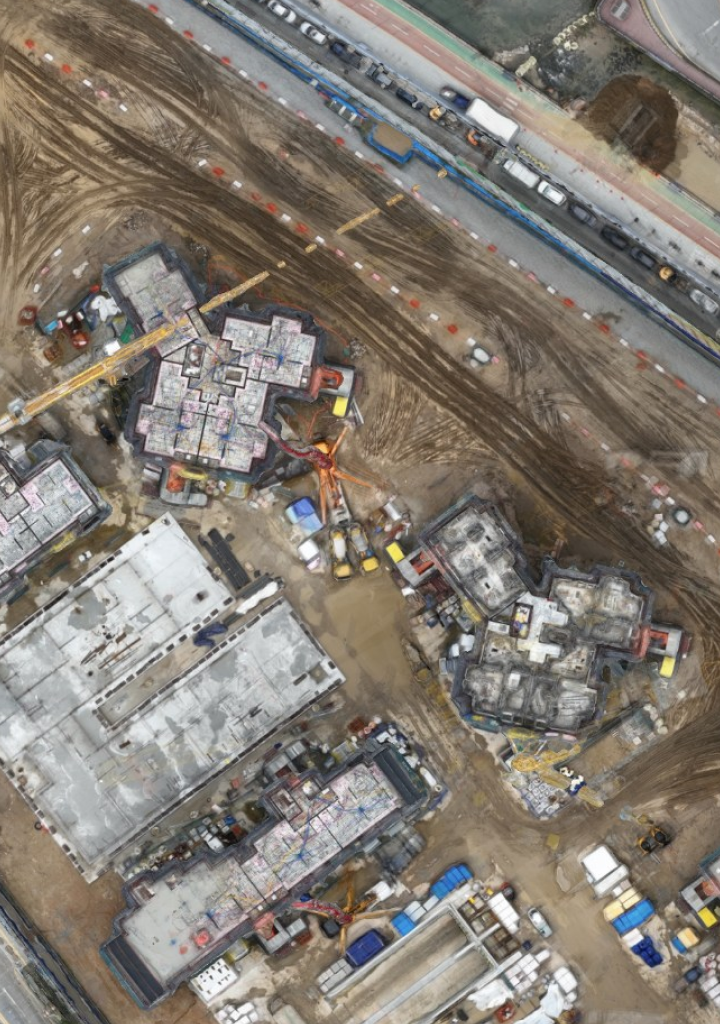
7. Summary
Review the aerial map settings and click Upload to start processing.
Note:
- You can check processing status and results in the SkyMap Editor. For details, see the SkyMap Editor article.
- Click History at the top right of CupixConnect to view upload history, check the status, or resume uploads.